Categories
Site News and Events

A Kit for your Kindness – GKTW Gingerbread Run

Give Kids the World (GKTW) is literally the place where Dreams come true. Each year it fulfills the wishes of thousands of children by providing accommodations, meals, attraction tickets, and a whole lot of fun at a 70-acre whimsical resort. On Saturday, November 2nd 2013, Give Kids the World will be holding their annual 5K “Gingerbread Run.” This professionally-timed race winds through the Village, past snoring trees, magic castles and the world’s largest CANDYLAND game. It is a fun way to raise money for the Village, and help fulfill Wishes for more children!

I reeeeeally wish I could be there in person so that I could participate – it sounds like a lot of fun, and since I recently completed a 5K to benefit breast cancer patients, I’m not too intimidated by the distance. I unfortunately won’t be able to make the trip over from California to attend this event in person, but I did find a way for MouseScrappers to help… . Yep, I signed us up! MouseScrappers is an official ‘Virtual Participant’!

Of course I’m not going to ask you to donate without arranging for you to get a goodie in return, so I asked Wendy from Neverland Scraps if she could put together a 4-pack of her fabulous Pixie Plates. She not only put together one pack, she put together two!

Set 1 is perfect for pocket scrapping (e.g. Project Life / Project Mouse)
Pixie Plates #270-273

Layout by Melinda
Layout by Melinda

Layout by Ana
Layout by Ana

Layout by Jenn
Layout by Jenn

Layout by Susan
Layout by Susan

Layout by Lisa
Layout by Lisa

 Set 2 is perfect for layers of papers and element clustering

Layout by Andrea
Layout by Andrea

Layout by Tammy
Layout by Tammy

Jennifer
Layout by Jennifer

Layout by Jennifer
Layout by Jennifer

Layout by Dawn
Layout by Dawn

Layout by Lisa
Layout by Lisa

Here is how it works

  1. Click the “Donate Now!” button below to go to our participant page on firstgiving.com
  2. On the firstgiving donation page, enter whatever amount* you are comfortable with; If you don’t wish to show your real name you can put your MS username in the “Display Name” field, or you can check the box that says “I want to hide my name on the fundraising page”
  3. Check your email for a receipt showing your donation amount
  4. Forward your email receipt to donations@MouseScrappers.com. In your email, indicate which set(s) you would like to receive: Set 1 (Pixie Plates #270-273) or Set 2 (Pixie Plates #274-277). Donations of $10 or more will be sent both sets.
  5. Once I receive your receipt, I will email you a link to download the template pack(s)

*Suggested donation: $5 for each set

Thank you!! 

DonateButton

Categories
Disney History Gone But Not Forgotten In the Parks WDW vs DLP

WDW vs. DLP: Frontierland (Part One)

My favorite Land in Disneyland Paris is Frontierland, and this article is the first in a series of five comparing it to its Floridian counterpart. I am hoping to cover as much of the this Land as is possible, with the exception of the Railroad station, which I wrote about for a previous article – see http://mousescrappers.com/wordpress/?p=656

Several Imagineers I have spoken to about the creation of this Land have referred to it as “Westernland” (the name given to the version in Tokyo, due to “Frontier” being a term not thought to be as recognizable by its target Guests). Although this could on occasion have been them getting their resorts muddled up, there was a period of time when the name was strongly considered for use in the France park, although the Land’s Art Director, Jeff Burke, claims to have been adamant from day one that “Frontierland” was the only name which should or could be used.

Personally, I feel the theming of Frontierland in Paris to be one of the most thorough and in-depth, which is in part due to its size as the biggest Frontierland worldwide. However, much credit must go to the Land having such a coherent backstory, although I suspect that some sections of the storyline may have been retrofitted. However, over time, I feel additions and changes to the Land have contradicted much of this backstory, as did a temporary overreliance on cartoon characters, especially when Woody’s Roundup Village was in operation.

A photo-op from the now defunct Woody’s Roundup Village. Photo courtesy of www.photosmagiques.com

One example of an element of the Paris Frontierland’s backstory which is downplayed more now than in the park’s earlier years is the distinction between the “rich” half of the Land and the “poor” half. Likewise, although the Land is still a hub for Halloween activities, the two halves are no longer changed during that celebration into “Trickland” and “Treatland”.

Recently, although Halloween celebrations in the Paris resort have been more minimal than they once were (and also more Main Street based), during the season, Frontierland still features Pumpkin-Head mannequins, themed bands and the meet-and-greet with Jack Skellington and Sally. In previous Octobers, the Land has also featured face-painting, mummified ships, spooky dinner shows and occasionally an overall re-name/re-theme to “Halloweenland”.

Jack and Sally in DLP’s Frontierland, in Boot Hill Cemetery. Photo courtesy of www.disneyandmore.com

Christmas is also celebrated in Paris’ Frontierland more than elsewhere in the park, with seasonal stage shows, reindeer, Santa’s workshop and a chance to meet the big guy himself.

Other than perhaps during the Halloween/Christmas celebrations, both the Paris and the Florida Frontierland are set in the mid to late nineteenth century. They both feature a generous smattering of props from the era as well as a smoking area, a pin trading location and a shooting gallery.

Attractions currently existing solely in the Paris Frontierland include Legends of the Wild West (a self-guided walking tour of Fort Comstock) and two Native American camps: Pocahontas Indian Village (a play area for younger Guests) and a set of tepees near the Land’s main entrance. In the earlier days of the park, Guests could walk in and around the latter, whereas nowadays they can only be experienced from a distance, although -as of the last few months- smoke has started to come from one of them.

In part two of this article (to be published on Thursday 7th Nov 2013), I shall be looking at the restaurants, shops, theatres and shows of these two Frontierlands, and then parts three to five will look at the “main” attractions of the Paris Land (Rivers of the Far West, Big Thunder Mountain and Phantom Manor) and comparing them to their Florida equivalents. These three articles will be published Nov 21st, Dec 5th and Dec 19th respectively.

Categories
Amazon Disney @ Home In the Parks

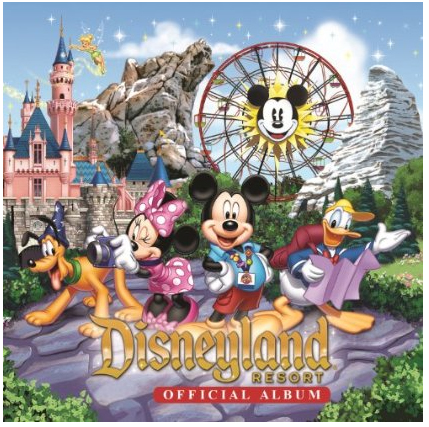
New ‘Disneyland Resort Official Album’

Walt Disney Records released this album on August 20, 2013. It has over 2-1/2 hours of music from the parks. If you are like me, you probably have several of these songs already. However, some of the tracks seem to have ‘just a little bit extra’ material in them. For example, I have “Grim Grinning Ghosts” on one or two Disney albums already, but they begin with Thurl Ravenscroft singing “When the crypt doors creak and the tombstones quake…”. The Grim Grinning Ghosts track on this album also contains the introduction you hear in the foyer, “When hinges creak in doorless chambers…”, voiced by Paul Frees. There is also a Fantasyland ‘dark ride’ medley which begins with audio from Pinocchio’s Daring Journey. This is something I don’t have already. Disk two also contains new material from Disney California Adventure, like the Radiator Springs Ridethrough.

    Disk One

1. All Aboard! (Album Version)
2. Married Life
3. The Tiki Tiki Tiki Room (Album Version)
4. Indiana Jones and the Temple of the Forbidden Eye (Instrumental)
5. Tarzan Medley (Instrumental)
6. Yo Ho (A Pirate’s Life For Me)
7. Grim Grinning Ghosts
8. Splash Mountain Medley (Medley)
9. The Many Adventures of Winnie the Pooh (Instrumental)
10. Pecos Bill
11. Touch the Sky
12. Bibbidi-Bobbidi-Boo
13. The Fantasyland Darkride Suite (Album Version)
14. It’s a Small World Clock Parade (Album Version)
15. It’s a Small World (Album Version)
16. Steamboat Willie (Album Version)
17. Roger Rabbit’s Car Toon Spin (Instrumental)

    Disk Two

1. Submarine Voyage (Disneyland Attraction Version)
2. The Throne Room
3. Buzz Lightyear’s Astro Blasters (Instrumental)
4. Space Mountain (Album Version)
5. Suitcase and a Dream
6. Who’s Afraid of the Big Bad Wolf
7. Mike and Sulley to the Rescue
8. The Twilight Zone Tower of Terror Theme (Album Version)
9. Soarin’
10. The Bakery Theme
11. A Bug’s Life Suite (Album Version)
12. It’s Tough To Be a Bug
13. The Little Mermaid Medley
14. Midway Mania
15. The Cleaner
16. California Screamin’
17. Welcome to Radiator Springs
18. Funiculi Funicula
19. Radiator Springs Racers: Attraction Ride Through

From what I’ve read, it is only available for sale in the Disney Parks or as a download from Amazon or iTunes. If you choose do download, you can download individual songs or the entire album for a very reasonable price ($18.99 at the time of this writing).

If you do order it from Amazon, please consider using the link below to make your purchase.

Disneyland Resort Official Album

Categories
Site News and Events

Fundraiser benefiting the Make-A-Wish Foundation

We at MouseScrappers really love organizations like Make-A-Wish as they help children and their families experience special activities that they may not get to experience otherwise. Now it is OUR turn as a community to do something together to help Make-A-Wish help other families live their dreams.

This July, there will be a special fundraising event taking place in California called “Course of the Force”. It is relay very much like the Olympic torch relay, however in this Star Wars-themed event, instead of a torch the runners will be carrying a “Lightsaber”. Last year it started in the Los Angeles area and finished in San Diego (right at the start of Comic Con). Given the overwhelming response, success and money raised for MAW, this year’s event is expanding and will cover nearly 500 miles! The race will kick off in Marin County (the Bay Area) at the world-famous Skywalker Ranch, and will finish in San Diego.

I will be volunteering at this event – hopefully during the last few miles but the details are still being worked out. I will be joining members of the three major Star Wars costuming organizations (501st Legion, Rebel Legion, and Mandalorian Mercs) as they escort runners and show their support for this fun and worthy cause. I have been working on a costume for the last few months and aim to finish it in time for this event.

In 2011 MouseScrappers raised $500 for Give Kids the World, so I have set a target of $500 for this event (though I’m hoping we can surpass it!). Will you please help MouseScrappers raise this money for Make-A-Wish?

 Please visit our donation page at {link expired}  Any amount, even if it is just a few dollars would be very much appreciated!!

Here are a few photos from 2012. These two guys are members of the Mandalorian Mercs (Boba Fett and Jango Fett are Mandalorian, a name that refers to people from the planet Mandalore, in case you were wondering 😉 ). I am so excited to be joining these guys this year!


Make-A-Wish Foundation® is a nonprofit organization that grants wishes to children with life-threatening medical conditions see their dreams come true. The Foundation’s mission reflects the life-changing impact that a Make-A-Wish experience has on children, families, referral sources, donors, sponsors and entire communities. Since 1980, Make-A-Wish has made “wishes come true” for more than 250,000 children worldwide. Nearly 25,000 volunteers work in different capacities, from wish-granting to fundraising, to enhance these children’s lives, showing the power of a wish.

Thank you… and may the Force be with you!

Categories
Challenges

Photo Scavenger Hunt app

UPDATE – the May/June photo scavenger hunt has been added to the files below. Also, there may be another option just for iPhone somewhere down the line… we’ll update you if it pans out.

Julie (liriel) recently mentioned to me that she wanted to add the current Photo Scavenger Hunt to an iPhone app. Unfortunately the app wasn’t really set up to allow customization, but it got me thinking how nice it would be to have some sort of mechanism to share the list out to your smart phones. The ideal solution would be to have an app that works for both iPhone and Android – I tried out a number of apps on both platforms but didn’t find an ideal fit for either (let alone both). I did, however, find a solution that will work for us until something better comes along. 😉 It is free and should work for not only iPhone and Android, but also with Blackberry and Windows phones.

Introducing  Evernote

Evernote is packed with a number of handy features, but what we mostly care about is its ability to make lists and share them with other people. Some of the key terms to know are:

“Note” – just a virtual memo – you might start a note for your next trip to the grocery store, or start a note to keep track of songs you want to buy. It can have text and/or images. We are going to use these notes like a ‘to do’ list.

“Notebook” – a collection of notes. You might make a notebook called ‘Packing Lists’ and have one note for WDW/DL and another note for DCL.

“Sync” – Evernote actually has 3 different ways to access your notes: 1) mobile device, 2) PC/Mac, and 3) Internet browser. In order to view/update your notes from all three you must ‘sync’ (i.e. synchronize) them.


SETUP

STEP 1: Install Mobile App

Download the app for your phone. Open the appropriate appstore from your phone and search for “Evernote” and install it (I will refer to this as the ‘mobile app’)


STEP 2: Install desktop app

Download and install the Evernote program for your computer.  You can download it at http://evernote.com/evernote/index.php (I will refer to this as the ‘desktop app’).

Windows – click the green button that says “Get Evernote for Windows”
Mac – hover over the green text that says “Get Evernote for mobile, tablet, and other devices” and select “Mac OS X”

Install the program you just downloaded


STEP 3: Create an Evernote account

There are a few ways you can create an account. One way would be to fill out the form at https://www.evernote.com/Registration.action. As an alternative you can start up the desktop app, click on “New to Evernote” on the right side of the screen and fill out the form.


STEP 4: Import the MouseScrappers Notebook(s).

I put the current scavenger hunt (#15) into two different Notebooks. You won’t need to use both but you might want to download both and try each one and see which format you prefer.

Check box style notebook: In this notebook, all items from the March/April scavenger hunt are listed inside a single note. It is concise and has check boxes so you can check things off once you’ve found them. In theory, I can add an additional note for each new scavenger hunt which might be nice for people who like playing old challenges just for fun even when the challenge is over. To illustrate, I’ve loaded both Jan/Feb and Mar/Apr hunts into this notebook. Click here to download this notebook

Thumbnail style notebook: In this notebook, each scavenger hunt item is listed on a separate note. This format is suitable for those who want to use their phone to take photos – it takes a few extra clicks to start up your camera but it is still more convenient than minimizing the app, starting the camera, then restarting the app. It will add a thumbnail of the photo to the list and save your image in your gallery as normal. Click here to download a zip file containing both hunt #15 and hunt #16

Start the desktop app on your computer and sign in. Go to “File” > “Import” > “Evernote Export Files” and select one of the .enex files you downloaded above (unzip it first).


You will then see this screen asking if you want to sync it (i.e. share the notebook with your phone). click “Yes”


On the left side of the screen you will now notice a new item that says “Imported Notes”. Rename this to something more descriptive. To rename right click and click ‘Rename”.


On the right side of the screen you will see items in the Notebook I created. Here is how my screen looks after I’ve imported the file “MS scavenger hunts – checklists only.enex“


Here is how the left pane of my window looks after I’ve imported both files and renamed them.


STEP 5: View the lists from your mobile phone

Open the mobile app from your phone and login to Evernote. It should sync automatically but if it doesn’t look for the sync icon (two arrows forming a circle) and click on it. On the main screen, you will see “Notebook” toward the bottom. Click on “Notebook” and you should see the Notebook(s) you imported in step 3. You will then see a list of all your notebooks.

You may wish to sort the items in the list for easier reading. For my Android phone, I clicked on the little triangle in the green bar at the top of the mobile app. I clicked on “Snippet” in the “View As” section, and I clicked on “Title” in the “Sort by” section. FYI, On my phone, the elephant icon acts as a back button.


Check box style notebook

When you click on this option, you will see multiple scavenger hunts. Click on #15 March 1- April30


Here is how the scavenger hunt list looks on my phone.  Notice how I can checkoff any item on the list by touching the check box (here I’ve checked off #1).


Notebook 2 – thumbnail style notebook

Here is how the scavenger hunt list looks on my phone.  To add a photo, click on a list item you want to photograph


Click the pencil to edit the note


Click the camera icon to start your phone’s camera


 Take a picture.  If you like the image click ‘Save’.  If you want to take the picture again click “Discard”.  Note: It will save the photo in your phone’s gallery whether you choose ‘Save’ or ‘Discard’. It appears as though the image is the same quality whether you take it through the Evernote app or through your camera app, but you may want to try this out and make sure on your phone.


Once you press ‘Save’ you will see the image appear in your note (to delete this hold your finger on the image for a few seconds and it will give you an option to ‘Remove’).  You can write a note here if you want, I chose not to for this example. Be sure to use the check mark in the upper left corner.  I made the mistake of hitting my Android ‘back’ button and it didn’t save.


You will now see your photo as a thumbnail for that item.  You may see a message at the top – this indicates that it has uploaded it so you will be able to access it from the web/desktop app.


That’s pretty much it! It will take a little while to familiarize yourself with the app but it is pretty intuitive for the most part. You will want to import the list before you head to the parks as a computer is needed for that feature.

Let me know what you think!