I recently finished my 3rd runDisney race, and only have a few months until my next one. I enjoy creating costumes for the events, but seem to go out and buy new patterns each time I need something new (this goes for Star Wars costuming as well, which I also do). While I was looking through patterns online the other day, I realized I probably already own some patterns that would fulfill the needs of at least part of my current/future projects. I’ve been sewing since 7th grade and have accumulated numerous patterns over the years – of course styles come and go, but when you are mixing patterns sometimes you can utilize a neckline of this pattern or an a-line silhouette of that pattern. Unless you can catch a sale, patterns can really be expensive, so I decided I should check my stash before running out and buying more… but it’s hard to do with so many patterns (especially if you store them in multiple locations). I recently cataloged all our DVD movies using a phone app and wondered if a similar app exists for patterns. I didn’t find anything specifically for patterns. There are some general “inventory” apps (I am trying one out for all my embossing folders), but since some of my patterns are really old I knew I couldn’t rely on the UPC symbol. So I turned to my old friend, Evernote!
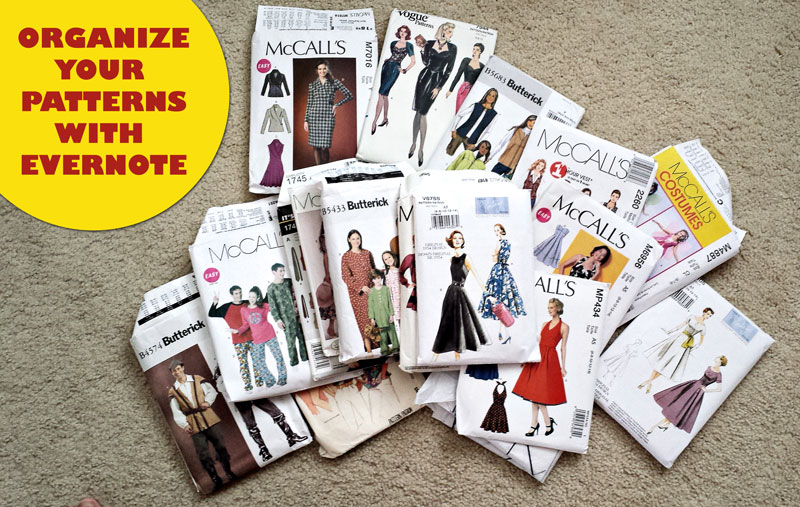
I made use of my ScanSnap iX500, which you can pick up on Amazon here: Fujitsu ScanSnap iX500 Scanner for PC and Mac (PA03656-B005) I bought it to try to organize/get rid of some of my mounds of paper. While I’m slowly chipping away on the mounds (baby steps!), it does scan very quickly and easily. The hard part is getting organized before scanning – once that is done, scanning is a breeze.
You could also take photos of all of your envelopes (or maybe find images of them on the internet), but the ScanSnap does the job really quickly, so my intention today is to show you how I used it to catalog my patterns.
ScanSnap Manager settings
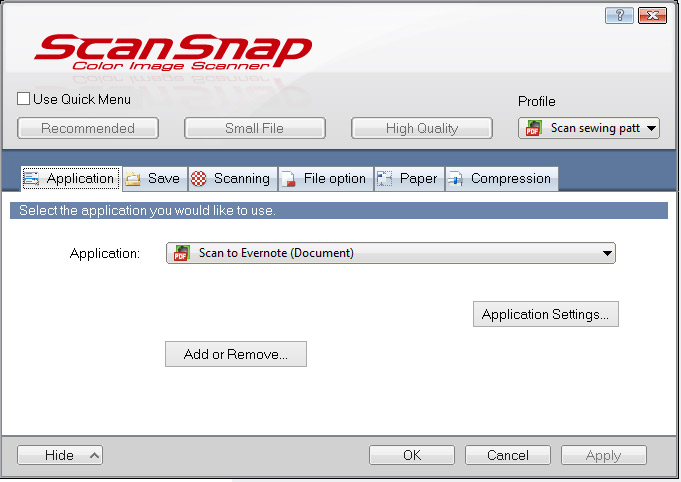
I opened up ScanSnap Manager and created a new “Profile”. I just called it “Scan sewing patterns”. On the “Applications” tab, I selected “Scan to Evernote (Document)”
On the “Save” tab, I left the default in the Image saving folder field, but I suppose I could have added another folder to organize a little better. But my goal is Evernote and not so much my hard drive. I checked the “Rename file after scanning” box. This way it gives me an option to change the name before it saves it.

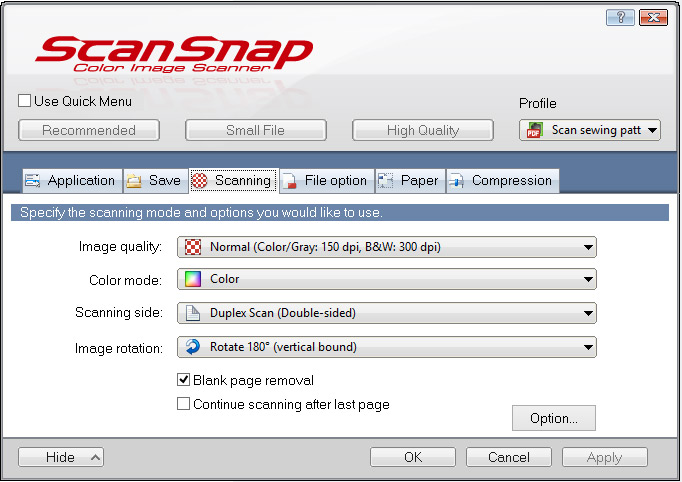
On the “Scanning” tab, I changed the “Scanning side” to “Duplex Scan (Double-sided)” so that it would scan both sides of the envelopes. I also changed “Image rotation” to “Rotate 180 (vertical bound)” – it’s not essential to change this setting – just personal choice based on how I wanted the envelope to go through the scanner. I was thinking face down (but right side up) would create the least heartburn. I don’t think “Blank page removal” comes into play for this single page scan.
If you click on “Option…”, you’ll see this dialog box. I didn’t change any of the settings, but good to know they can be adjusted if needed.

On the “File option” tab, I made sure “PDF (*.pdf)” was selected. I also made sure “Convert to Searchable PDF” was checked

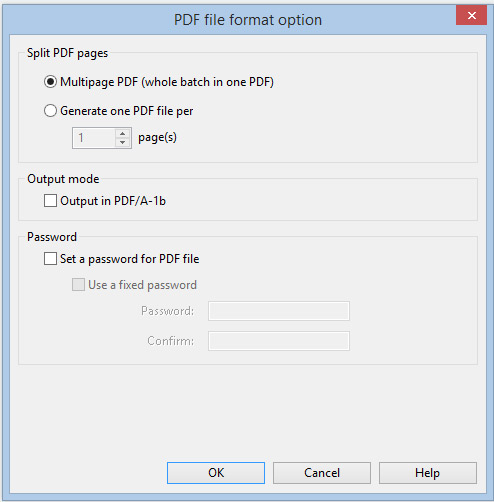
If you click the “Option…” button, you’ll see this dialog box. I selected the “Multipage PDF (whole batch in one PDF)”. You could select the other option and use 2 pages and it would yield the same result. If you generate a PDF for each 1 page, then you can later select the scans from the front and back of the envelope and merge them to one note. I like the way the merged note looks on my laptop, however I don’t like the way PDFs look on my smart phone (they are attachments that I have to open with a separate app). If you ‘merge’ documents, you have 2 PDF attachments… one for the front of the envelope and one for the back. It’s bad enough I have to open one at all – I don’t want to have to open two. 😉
On the “Paper” tab, I changed the “Multifeed Detection” to “None”
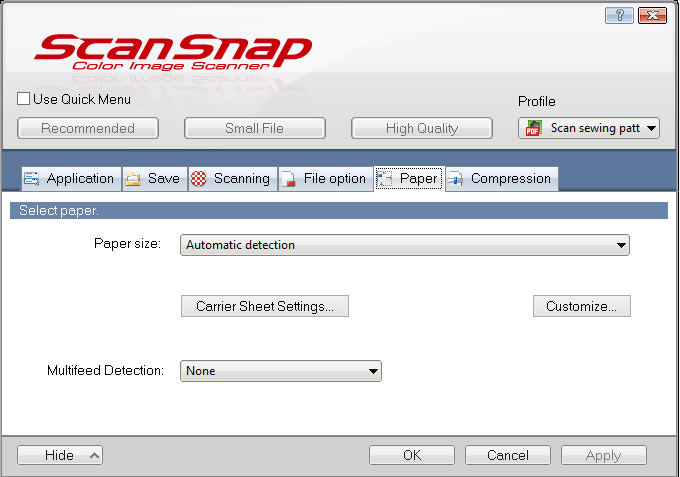
…. otherwise I would get this error:

I already had the value on the “Compression” tab set to 4, so I left it. It is not a setting I have researched too much yet

In Evernote, you can either set up your tags before you scan, or do it while you are scanning. I ended up adding tags while I was scanning, but it’s good to have an overall plan for organization. But if you don’t (or change your plan later) it’s super easy to move tags around. Here is what my tags looked like when I was all finished (this was after I did lots of fine tuning). I think it will work for me for now.
Because I’ve gotten in the habit of starting all scanned items with a period, I created a “.sewing pattern” category and a few main subcategories:
- .pattern categories
- .pattern company
- .pattern cut status
- .pattern difficulty
- .sewing theme
- .style

We are now ready to start scanning. First I removed the contents from the pattern envelope (this is one of the patterns I bought for Disneyland’s 60th anniversary… but I ended up using a different pattern, lol). It would be too bulky to send the whole thing through the scanner.

I then loaded the envelope into the scanner as such (this is where the “Image Rotation” on the “Scanning” tab comes into play. If you want to run it through differently then you may not need to change the orientation).

After pressing the scan button, I was prompted for a new name. I saved the file as the pattern number. in this case, “MP434”

Below the image I put the year the pattern was created (look for the copyright on the envelope – most have it but a few old patterns didn’t).

While I may never use the year for searching, it is nice to have for reference, and I didn’t want to add a tag for each year. Another thing I could do since I have some really old patterns is tag with the decade, like ‘1980’s’. Who knows, I might want to create an 80’s outfit sometime (not like I don’t have some leftover clothes from then, haha). Another bonus of having a little bit of text in the note is that I’ll see a smaller thumbnail of the pattern when I view the entire Notebook (otherwise it is a larger thumbnail of PART of the image… the entire image doesn’t show).
TAG, TAG, TAG!
Once the envelope is scanned, start tagging. When in doubt, tag it. Tag all the elements in the pattern (shirts, pants, belts, hats, bows). Tag the theme (e.g. princesses) and style (e.g. v-neck, sweetheart, etc). There is virtually no limit on the number of Evernote tags you may use.
Once you add a few tags to a pattern (around 3), you will have to add all subsequent tags through a pop-up. It takes extra clicks and is tedious, so to alleviate some of that you can do a few things to free up some additional room on the right side of the screen:
I unchecked “Show Left Panel”.

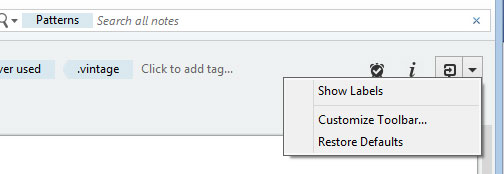
I also unchecked “Show Labels” and I removed a few icons using the “Customize Toolbar…” option (to access this menu, right click on toolbar where tags are displayed)
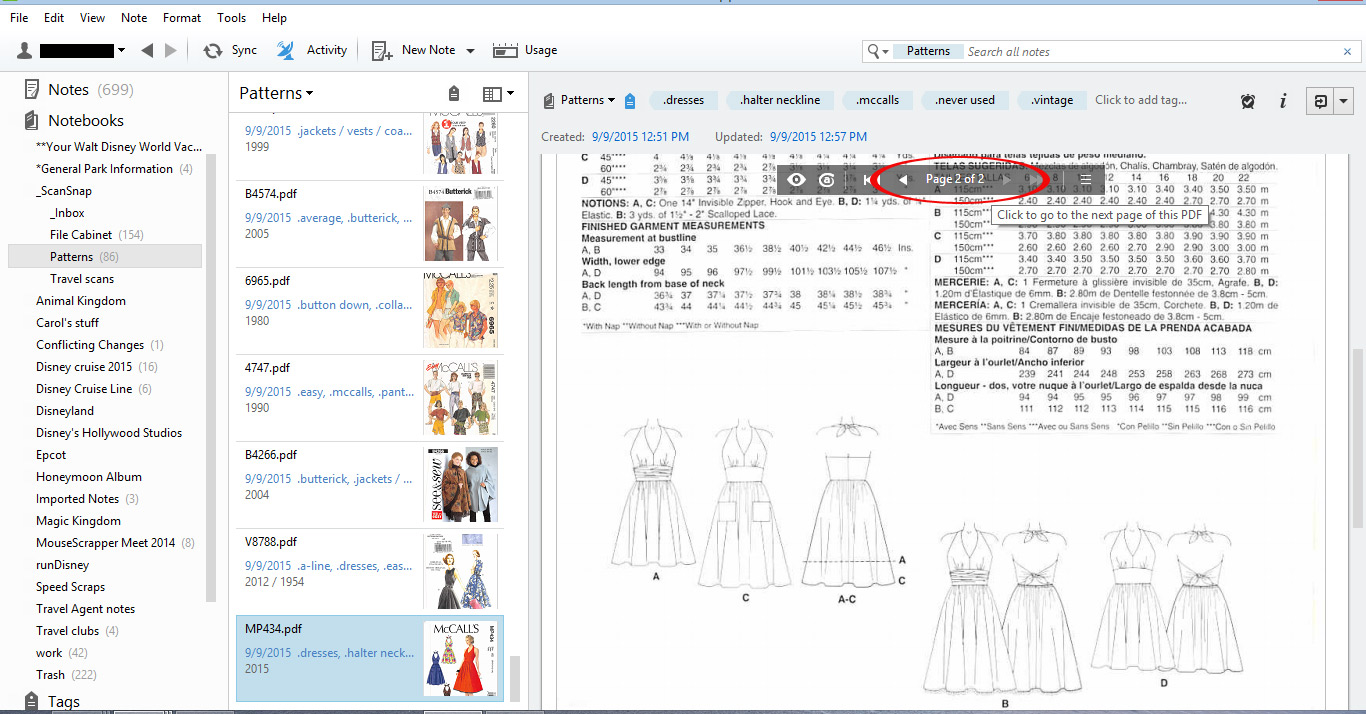
Once you are finished tagging you are done with the pattern. Here is how Evernote looks. You can see I have tagged this McCalls pattern with ‘.dresses’, ‘.halter neckline’, ‘.mccalls’ etc. There are a couple of ways to configure your screen for viewing purposes. I like seeing a large photo of the pattern in the right panel

The only thing I don’t care for with my cataloging method is that I have to hover over the image in order to find the arrow to go to page 2 (showing the back side of the pattern). But I wanted to keep it a pdf (jpg is another option, but the text wouldn’t be searchable), so I will live with the 2 page pdf.
Scan. Rinse. Repeat 🙂
Once you’ve cataloged all your patterns, now you can search by your tags. Click the tag icon and select the options you wish to filter on.
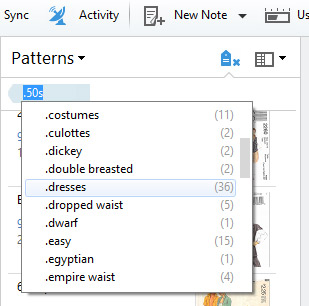
Here the view is filtered on dresses, and I can see 7 dress patterns in the center column.

I can also search on multiple tags. Here I’ve filtered for strapless dresses. This is so exciting!

Here I filtered on “.sash”. Who knew I had 4 of them??

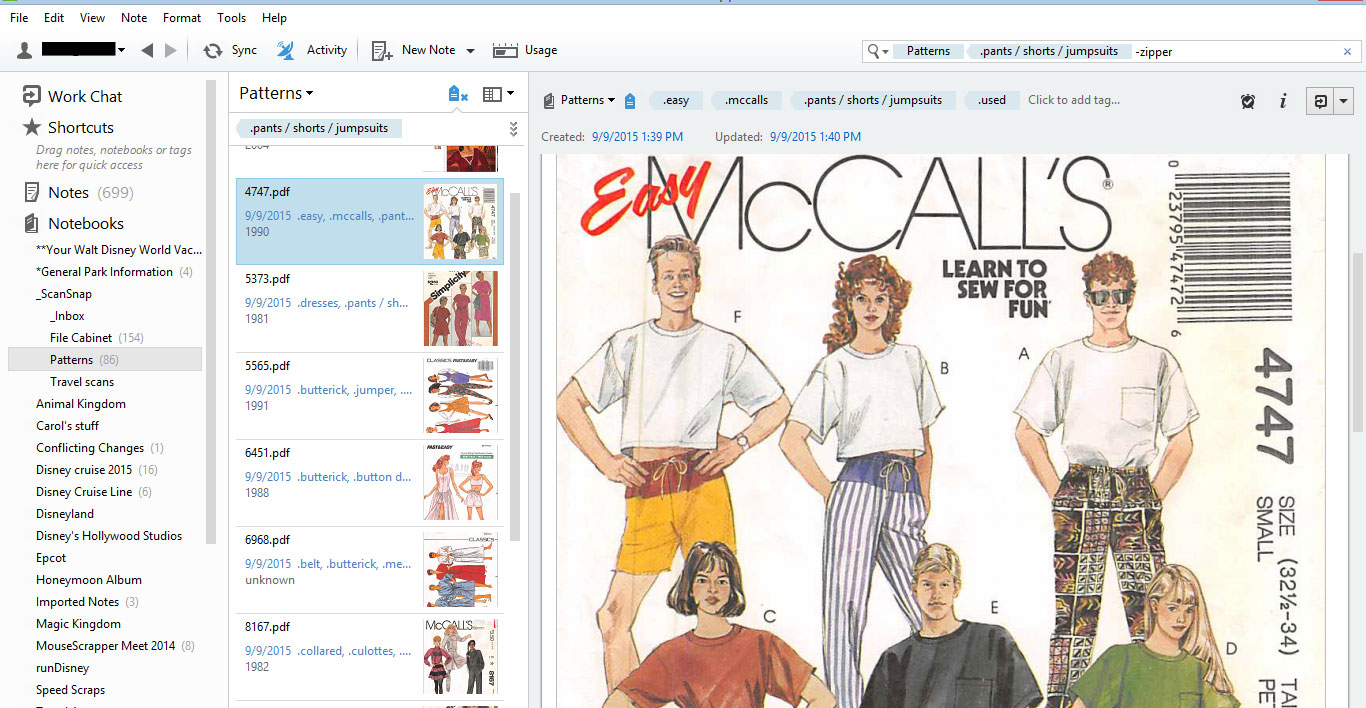
I thought I’d also try using a combination of tags and the search feature since the optical character recognition (OCR) means I can search text on the back of the pattern. I also wondered if I could use a “-” sign to exclude certain tags, and it seemed to work! Here I searched pants that don’t have a zipper listed on the envelope (notions). So what if this pattern is from 1990… it might work for my next project!
As I mentioned, you can change the view. Here is how it would look if you hide the “Note Panel” and changed the view from “Snippet” to “Card”. I like seeing multiple patterns at once, but it loses points for not being able to show the entire image of each. So for now, I’ll leave it as a snippet.
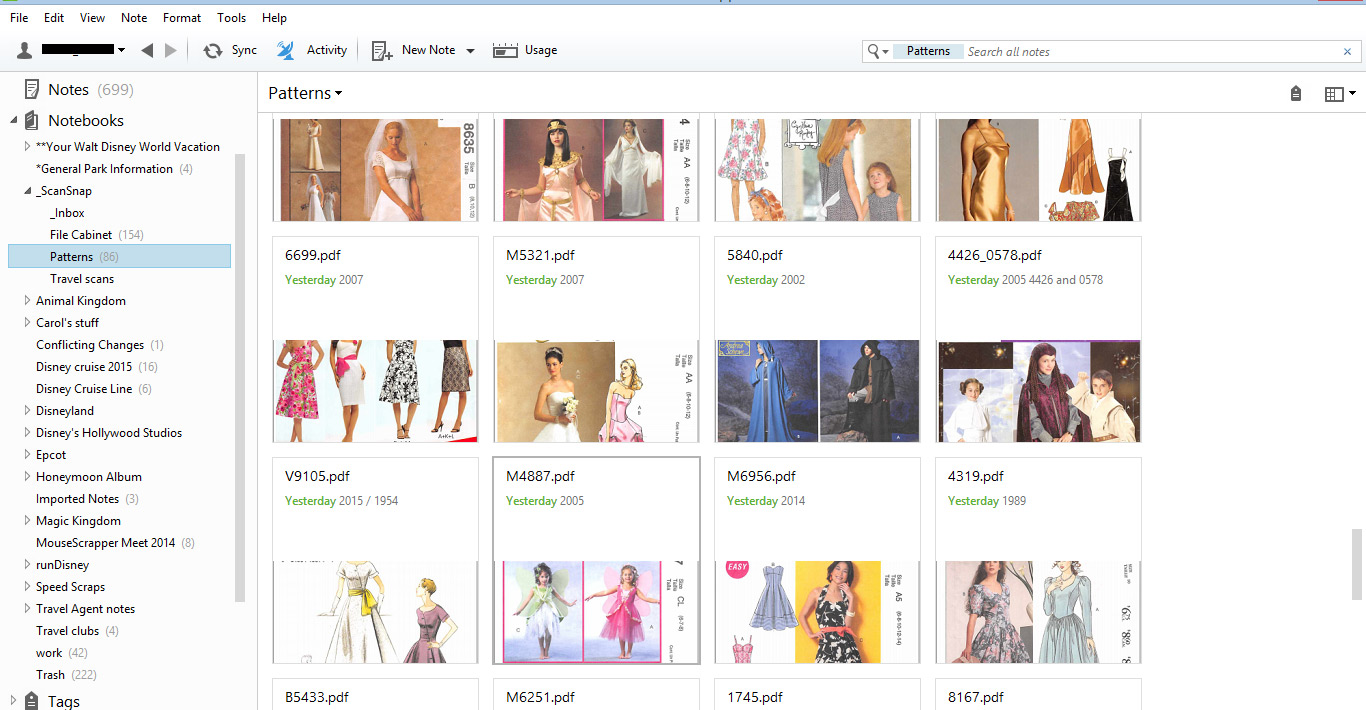
When I was all finished cataloging all my patterns, I had 91 of them, which surprised even me! It took a few hours to get organized, but going forward, all new patterns will be a snap (pun intended) to add. So I think it was well worth the time investment. Now next time I need a pattern for a project, I will check my stash first!